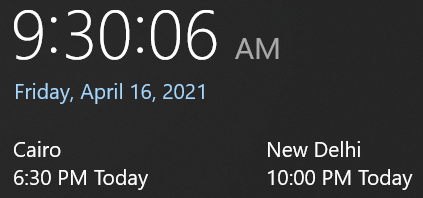
Configure Multiple Clocks

One of the great aspects of working for a large global company like Microsoft is working with a lot of diverse people. Working across time zones has its difficulties, though. I know that India is about 12 hours ahead of us, but with different observed timezone offsets it’s difficult to remember exactly. For a recent project I started working on, I also work with a lot of people in or around Cairo, Egypt.
To make this easier, I remembered just today that you can configure up to 2 additional clocks in Windows to help you know at a glance precisely what time it is where your colleagues reside:
Right-click on the date/time in your system tray.
Click Adjust date/time.
Click the Add clocks for different time zones link in the “Date & time” settings.
In the control panel dialog that pops up, configure your clocks as desired:
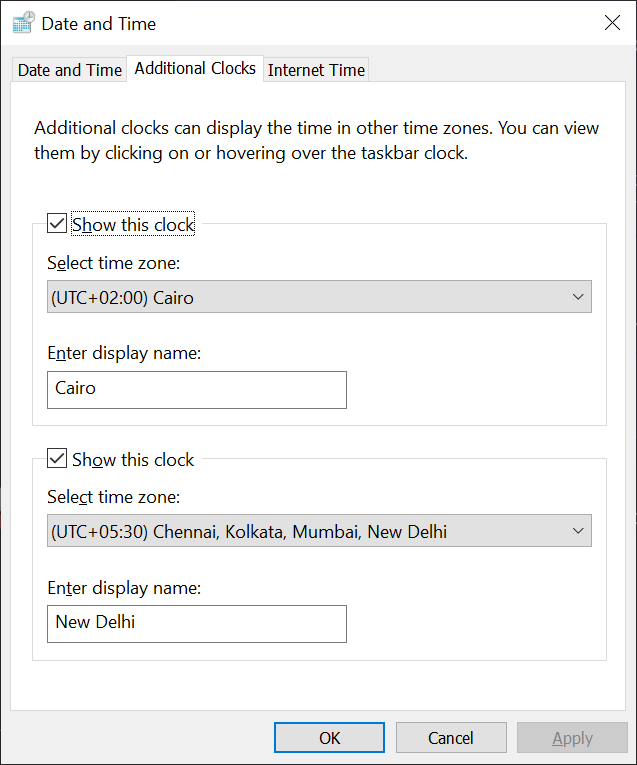
Click OK.
Now whenever you left-click on the date/time in your system tray, the top will show your current date/time and any additional clocks you configured: